
Getting started with Playwright
- qatube
- Jun 18, 2022
- 2 min read

Updated: Jul 2, 2022

What is Playwright?
Playwright is a framework for Web Testing and Automation. It allows testing Chromium, Firefox, and WebKit with a single API. Playwright is built to enable cross-browser web automation that is ever-green, capable, reliable, and fast.
Playwright test allows to:
Run tests across all browsers.
Execute tests in parallel.
Capture videos, screenshots, and other artifacts on failure.
Enjoy context isolation out of the box.
Integrate your POMs as extensible fixtures.
Why Playwright?
Playwright have very rich features, some of the features explained below
Easy Setup: Playwright is very easy to set up in a few min we can start writing the script
Browser Support: Playwright support multiple browse Chromium family browsers (Chrome, Edge), Webkit (Safari), and Firefox are all supported.
Parallel Testing: Playwright supports parallel execution. we can run parallel tests with multiple browsers.
Support for Multiple Tab: Playwright supports multi-tab and windows by launching a new window.
Language Support: Playwright supports Java, C#, Python, and Javascript, Typescript which makes him popular.
Testing: Using Playwright we can do End to End, Functional, API Testing, and Accessibility Testing.
Built-in Reporters: Playwright framework support JSON, JUnit, and HTML Reporters. Playwright also supports the reporter Allure Report.
CI/CD Support: Playwright supports CI/CD integration. It even provides docker images for some language bindings.
Other features Playwright support
Shadow DOM
Automatic Waiting,
Page object model
Test Retry,
Cross-Origin
iframe
Emulation
Screenshot capture
Video Capture
Install Playwright
Pre-condition
Node Js: Download Node JS
Vs code editor: Download Visual Studio Code
There are two ways of installing the playwright
Using the VS Code extension
Create a folder e.g playwright_first_script
Open the folder in VS Code
Search Playwright extension in vs code and Install it

Now Press command +shift +P (in mac)
Type “Install Playwright”


Click on the OK button on the above screenshot. As we click on OK button Playwright installation start

Using init command
Alternatively, we can scaffold your project using the init command.
Create a folder e.g playwright_first_script
Open the folder in VS Code
Run from the project’s root directory npm init playwright@latest
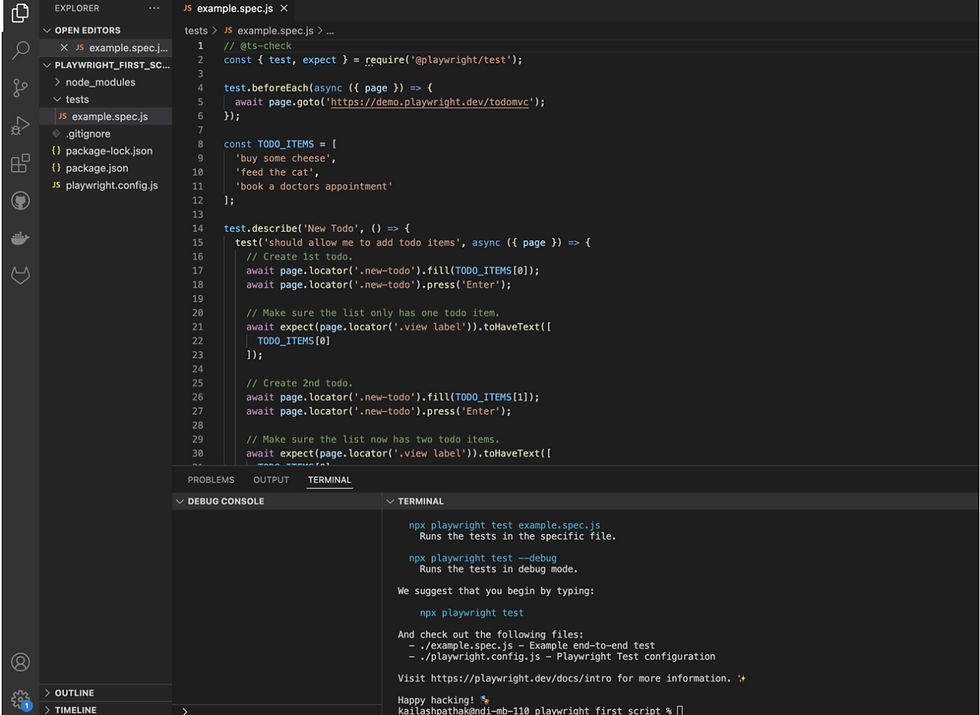
We can see in the above screenshot playwright is installed and the default spec file is displaying (example.spec.js)
Conclusion
Playwright can be easily installed and you can write your first script within a minute. Playwright has very rich features that differentiate him from other tools.
Reference
https://kailash-pathak.medium.com/getting-started-with-playwright-67a6eac64a21
Comments